A subtitle file is the text of a caption track plus its timings, saved as .srt, .vtt or .txt. You need one to get subtitles from YouTube into a video editor, a media player or a translation tool. If you only want the words to read or quote, the job is simpler: see how to get the transcript of a YouTube video.
Ways to download YouTube subtitles compared
Four methods cover how to download subtitles from YouTube, and the first question is whose video it is. YouTube Studio gives a file only for videos on a channel you manage. The other three methods work on any public video that has a caption track.
| Method | Whose videos | What you get | Install or sign-in | Best for |
|---|---|---|---|---|
| YouTube Studio | Videos on a channel you manage | The caption track as a file | Sign in to the channel's Google Account | Fixing and re-uploading your own captions |
| Web tool by link | Any public video with a caption track | A .srt or .txt file (TranscriptYou) | Nothing to install, no account | One video at a time, on a computer or a phone |
| yt-dlp | Any public video with a caption track | The format YouTube serves, or a conversion to srt, vtt, ass or lrc | Install the program, use a terminal | Playlists, channels and batches |
| Show transcript panel | Any video with captions | Text on screen, no file | Nothing | Reading or copying a few lines |
If the video is yours, use YouTube Studio: it is the official download, and the file goes back into Studio after you fix it. For someone else's public video, use a web tool for a single file or yt-dlp for many.
Web tools and the transcript panel run in a browser, so they work the same on Windows, macOS and a phone. YouTube Studio documents its subtitle download on a computer; on a phone, a web tool is the simpler route. yt-dlp has builds for Windows, macOS and Linux.
Download subtitles from your own video in YouTube Studio
YouTube Studio is YouTube's own way to download a caption file, and it works only for videos on a channel you can open in Studio. These are the steps from YouTube's help center:
-
Sign in to YouTube Studio
Open studio.youtube.com with the Google Account that owns or manages the channel.
-
Open Subtitles
From the left menu, select Subtitles, then click the video.
-
Edit the language
Under Subtitles, click Edit next to the language you want.
-
Download the file
Click Options and select Download subtitles. The browser saves the subtitles as a file.
If your Studio menu looks different
SkipTheWatch and SubtitleBee (2026 guides) describe a shorter route: in the Subtitles list, open the ⋮ menu on the language row and pick Download. Use whichever your Studio shows, Options → Download subtitles or ⋮ → Download.
YouTube's help center does not list the formats this download offers. SkipTheWatch and SubtitleBee say you can download subtitles in YouTube Studio as SRT, VTT or SBV, while Sozai's August 2026 guide reports getting an .sbv file only. Check the file extension before importing it. Automatic subtitles sit in the same list.
YouTube Studio gives you nothing for someone else's video, because its Subtitles page lists only your channel's uploads. Adding, editing and uploading captions on the creator side is covered in how to add subtitles to your own video.
Download subtitles from any public video
YouTube offers no subtitle file for videos you don't own, so every method below reads the caption track YouTube already sends to the player. If it doesn't exist, no tool can produce one from the video page.
I tried to do this a few months ago (for videos not shorts) and found that YouTube will only let you download transcripts for your own uploads. You have to authenticate to the API.
Paste the link into a web tool
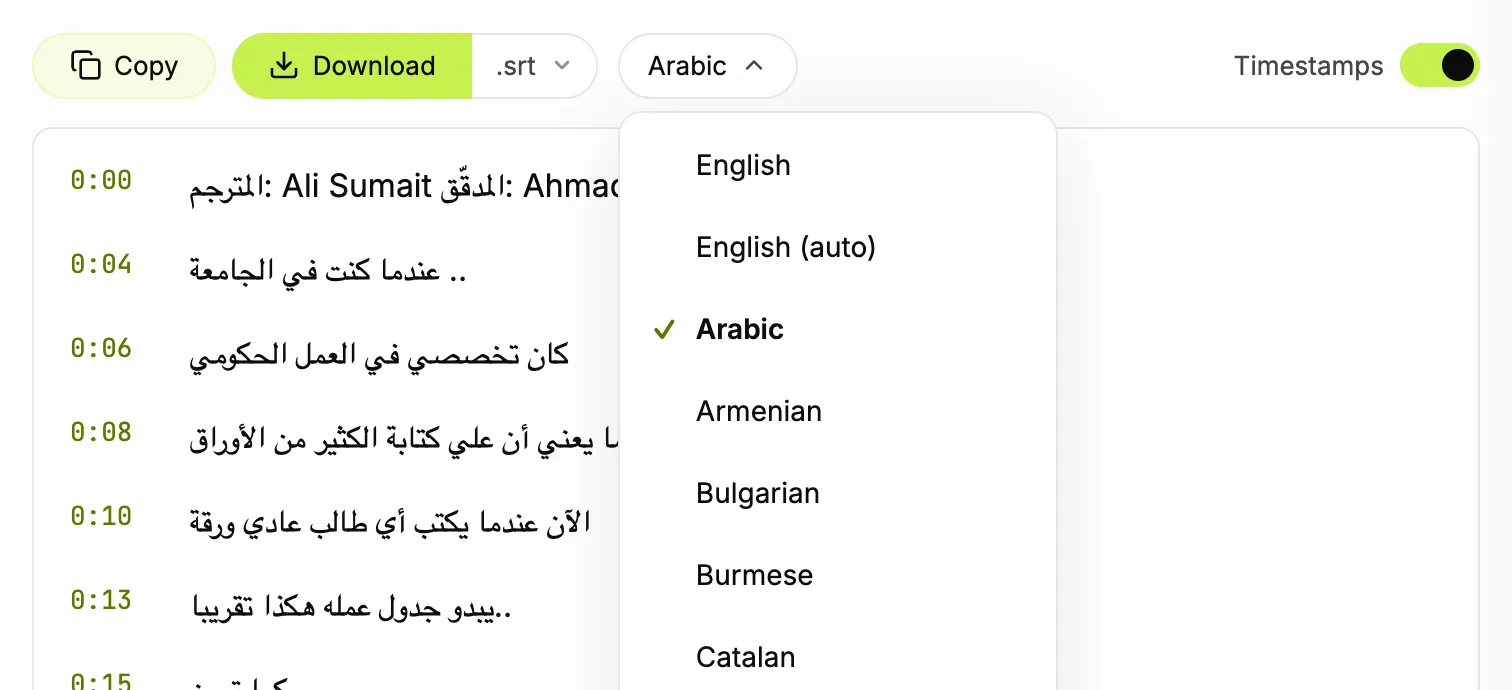
For one video at a time, a web tool is the quickest route: copy the link, paste it, choose the track and save the file. In TranscriptYou's YouTube subtitle downloader, the language menu lists the tracks the video carries, with automatic ones marked "auto". Check that the menu shows the track you want before you download: on a video with many creator tracks, another language can open first. Download then saves a .srt or .txt file. It is free, needs no account or browser extension, and takes Shorts links too.
DownSub is another well-known option; its homepage says it handles YouTube as well as Viki, Viu, WeTV and Kocowa. No site should ask you to install software or sign in with Google to read a public video's subtitles. Other subtitle and transcript tools, with their free limits and file formats, are compared in our roundup of transcript generators.
Use yt-dlp on the command line
yt-dlp is a free command-line downloader that can save subtitles without the video, which makes it the tool for playlists, channels and batches. Its README lists the options: --list-subs shows the tracks, --write-subs saves creator subtitles, --write-auto-subs saves automatic ones, --sub-langs picks languages (en, "en.*,ja" or all), --sub-format sets the preferred format and --skip-download skips the video itself.
This command saves the English track of one video as an SRT file; replace VIDEO_URL with the video link:
yt-dlp --write-subs --write-auto-subs --sub-langs en --sub-format "srt/best" --convert-subs srt --skip-download "VIDEO_URL"--convert-subs (ass, lrc, srt or vtt) is a post-processing step, and yt-dlp's README names FFmpeg as the dependency for post-processing, so install FFmpeg as well. The README also asks for a JavaScript runtime such as Deno: without one, our run warned "No supported JavaScript runtime could be found", so we added --js-runtimes node.
| What we ran | Video | Result |
|---|---|---|
--list-subs |
CxC161GvMPc, creator captions in 27 languages |
Listed the 27 creator tracks and the automatic ones, including machine-translated tracks such as "Albanian from English" |
| The command above | Same video | One .en.srt, the creator track: 86 cues, 653 words, no overlaps |
| The command above | h-2W-t22d8M, automatic captions only |
.en.srt: 205 cues, 1,517 words, no repeats, but 201 of 204 neighbouring cue pairs overlap in time |
The same with --sub-format vtt |
Same video | 409 cues and 4,495 words instead of 1,517: 399 lines repeat an earlier line |
An overlap means a cue is still running when the next starts, so two lines can show at once; the creator track had none. To remove overlaps, end each cue where the next begins, as in our captions guide. For automatic captions keep "srt/best": the VTT route tripled the words with repeated lines.
Copy the text from the transcript panel
When you need the text and not a file, the transcript panel is enough. On any video with captions, open the description and click Show transcript: the lines scroll with playback, and clicking one jumps to that moment. To keep the text, select the lines and copy them; no tool needed.
YouTube's help page for the panel describes reading along and jumping to a line; it documents no Download item, so don't count on one. Device-by-device steps are in how to get the transcript of a YouTube video, and a separate guide shows how to copy a YouTube transcript without timestamps. TranscriptYou's transcript page shows the same text with a one-click Copy.
Paste a YouTube link and pick the subtitle track
Open the language menu, choose the creator or auto track and save it as .srt or .txt. Free, no sign-up.
SRT, TXT or VTT: which file to choose
Choose the format by where the file goes next: a player or a video editor needs timings, a document or an AI chat needs plain text.
| Format | Timings | Opens in | Use it for |
|---|---|---|---|
| SubRip (.srt) | Yes, start and end of every line | Media players, video editors, YouTube Studio | Playing subtitles next to a video file, editing, uploading again |
| Plain text (.txt) | No, unless you keep timestamps | Any text editor, documents, AI chats | Reading, notes and quotes, when timing does not matter |
| WebVTT (.vtt) | Yes | Web players through the HTML5 <track> element |
Captions on your own website |
TranscriptYou saves only .srt and .txt, and its Timestamps switch decides whether the .txt file keeps a time code on each line. VTT comes from yt-dlp (--convert-subs vtt) and, per SkipTheWatch and SubtitleBee, from YouTube Studio. What sits inside an SRT file and how players read it is explained on the YouTube to SRT page.
![Diagram: one caption line as an SRT cue with a number and comma timecodes, as a WebVTT cue under a WEBVTT header with dot timecodes, and as plain text with or without a [0:01] timestamp](/images/blog/how-to-download-youtube-subtitles/srt-vtt-txt.webp)
Need a timed SRT file? Convert the video link
TranscriptYou builds a UTF-8 .srt file from the video's existing subtitle track and keeps its original timings. Free, no sign-up. A video without subtitles gives no file.
Pick the right track and language
One video can carry several subtitle tracks, and the one you choose decides the file's quality.
Auto-generated or creator subtitles
YouTube auto subtitles come from speech recognition, and YouTube's help center says their quality may vary: mispronunciations, accents, dialects and background noise all cause errors. Automatic subtitles are available in 67 languages. On a video with several audio tracks they follow the default language, and on a new upload they may appear some time later.
If a language has both a creator track and an automatic one, take the creator's: a person wrote or checked it. TranscriptYou marks automatic tracks "auto" in its language menu. One more detail from YouTube's help: by default, automatic captions replace potentially inappropriate words with [ __ ], so expect that gap in an automatic file.
Subtitles in another language
You can only download languages the video already has: tracks the creator uploaded or tracks YouTube provides. TranscriptYou lists the tracks it receives for the video and does not translate them; translation is not available in the tool yet.
In yt-dlp, --list-subs shows every available language and --sub-langs selects one. The list can include machine-translated automatic tracks such as "Albanian from English" (see the test above). Treat those like any automatic captions and check names and terms against the original.
When there is nothing to download
Every method in this guide reads an existing caption track, so these cases end without a file:
- No subtitle track. TranscriptYou and similar tools don't run their own speech recognition. YouTube's help lists why automatic captions can be missing: unsupported language, a very long video, poor sound, long silence at the start, overlapping speech, or processing that is still running. More in YouTube transcript not showing.
- Private, members-only or age-restricted videos. TranscriptYou reads public videos only, so these return nothing.
- Live streams. Live automatic captions are English-only and are not kept on the video. After the stream ends, YouTube generates new automatic captions for the recording, and they may differ, so download from the recording.
- Text drawn into the picture. Burned-in subtitles are part of the image, not a track, so there is no file to save.
- Video and subtitles in one MP4. TranscriptYou does not download video or audio; it saves the subtitle file only.
The subtitle text belongs to the video's creator. Ask for permission before you republish it or use it commercially.
Edit and reuse the downloaded file
A downloaded .srt or .txt file is plain text, so Notepad or TextEdit opens it. YouTube's help center suggests the same for caption timing: download the file, fix it in a plain text editor and upload it again. Keep the time code lines as they are and save the file as UTF-8 so accented letters survive.
For your own video the loop is short: download the track from YouTube Studio, correct names and terms, then upload the corrected file back to YouTube. To watch a downloaded video with its subtitles, open it in VLC media player and add the .srt through Subtitle → Add Subtitle File. Video editors and other platforms accept SRT too; see where to use an SRT file.
I usually download the autocaptions, edit them on my own system, then reupload the file.
How to download YouTube subtitles: FAQ
Can I download subtitles from a video I don't own?
Yes, if the video is public and has a subtitle track. YouTube Studio only covers your own channel, but a web tool or yt-dlp reads the caption track YouTube already serves to every viewer. Private, members-only and age-restricted videos stay closed to these tools.
How accurate are auto-generated YouTube subtitles?
It depends on the audio. YouTube's help center says automatic captions vary in quality and can misrepresent speech because of mispronunciations, accents, dialects or background noise. YouTube publishes no accuracy figure, so read the file before you rely on it, especially names, numbers and technical terms.
Can I save the transcript panel as a file?
Not through any documented option. YouTube's help describes the Show transcript panel as a way to read along and jump to a line, with no download. You can select the text and copy it. For a file, use YouTube Studio for your own videos or a web tool or yt-dlp for public ones.
Does TranscriptYou translate YouTube subtitles?
No. TranscriptYou saves only the tracks a video already has, as .srt or .txt, and translation is not available in the tool yet. You can pick a different language only when it is listed in the language menu for that video.
Can I download subtitles from a live stream?
Wait until the stream is over. Live automatic captions are English-only and are not kept on the video. After the stream ends, YouTube creates new automatic captions for the recording, and they may differ from what viewers saw live. Download the track from the recording once it appears.
Can I download subtitles for a whole playlist?
Yes, with yt-dlp. It accepts a playlist link and applies the same subtitle options to every video in it, so one command with --write-subs, --sub-langs and --skip-download saves a file per video. TranscriptYou and YouTube Studio work one video at a time.
What if the video has no subtitles at all?
Then no tool has anything to download. YouTube may add automatic captions later if it supports the language and the audio is clear, so check a new upload again after a while. If the video is yours, you can write captions and upload them in YouTube Studio.
Download YouTube subtitles
Paste a link, pick any caption track the video has and save it as .srt or .txt. Free, no sign-up.
Sources
- YouTube Help: Edit or remove captions (Download & edit caption files)
- YouTube Help: Use automatic captioning
- YouTube Help: View a video's transcript
- YouTube Help: Supported subtitle and closed caption files
- yt-dlp README: Subtitle Options, Post-Processing Options, Dependencies
- DownSub homepage
- SkipTheWatch: How to download YouTube captions (updated 2026-06-19), Studio menu and formats
- SubtitleBee: How to download YouTube subtitles (updated 2026-08-28), Studio menu and formats
- Sozai: YouTube captions to SRT (updated 2026-08-02), Studio .sbv export