Three kinds of YouTube timestamps and which one you need
A timestamp on YouTube, the video platform owned by Google, is a time inside a video written as 1:32. Where you type it decides what it does: only a list in the description creates chapters, and only the owner can edit the description.
| Timestamp type | Who can add it | Where you type it | What viewers get | Creates chapters? |
|---|---|---|---|---|
| Chapters in the description | The channel owner, or a manager or editor added in channel permissions | Description of the video in YouTube Studio | Chapters on the progress bar and clickable timestamps in the description | Yes |
| Timestamp in a comment | Any viewer | A comment or a reply under the video | A clickable time inside the comment | No |
| Link that starts at a time | Anyone | Share ‣ Start at, or ?t= in the address |
The video opens at that second | No |
Unlike captions or a transcript, chapters live in the description, not in the Subtitles section, so you do not need to add captions or a transcript in YouTube Studio first. If you own the video, the next section shows how to add timestamps to YouTube videos in Studio. If you do not, skip to timestamps in comments or links with a start time.
How to add timestamps to YouTube videos in YouTube Studio
YouTube Studio is where you add timestamps to YouTube video descriptions: the steps below follow the Video Chapters page of YouTube Help. They show how to timestamp YouTube videos you uploaded yourself.
-
Open the video details in YouTube Studio
Sign in to YouTube Studio, choose Content in the left menu and click the video. The video details page opens with the Title and Description fields.
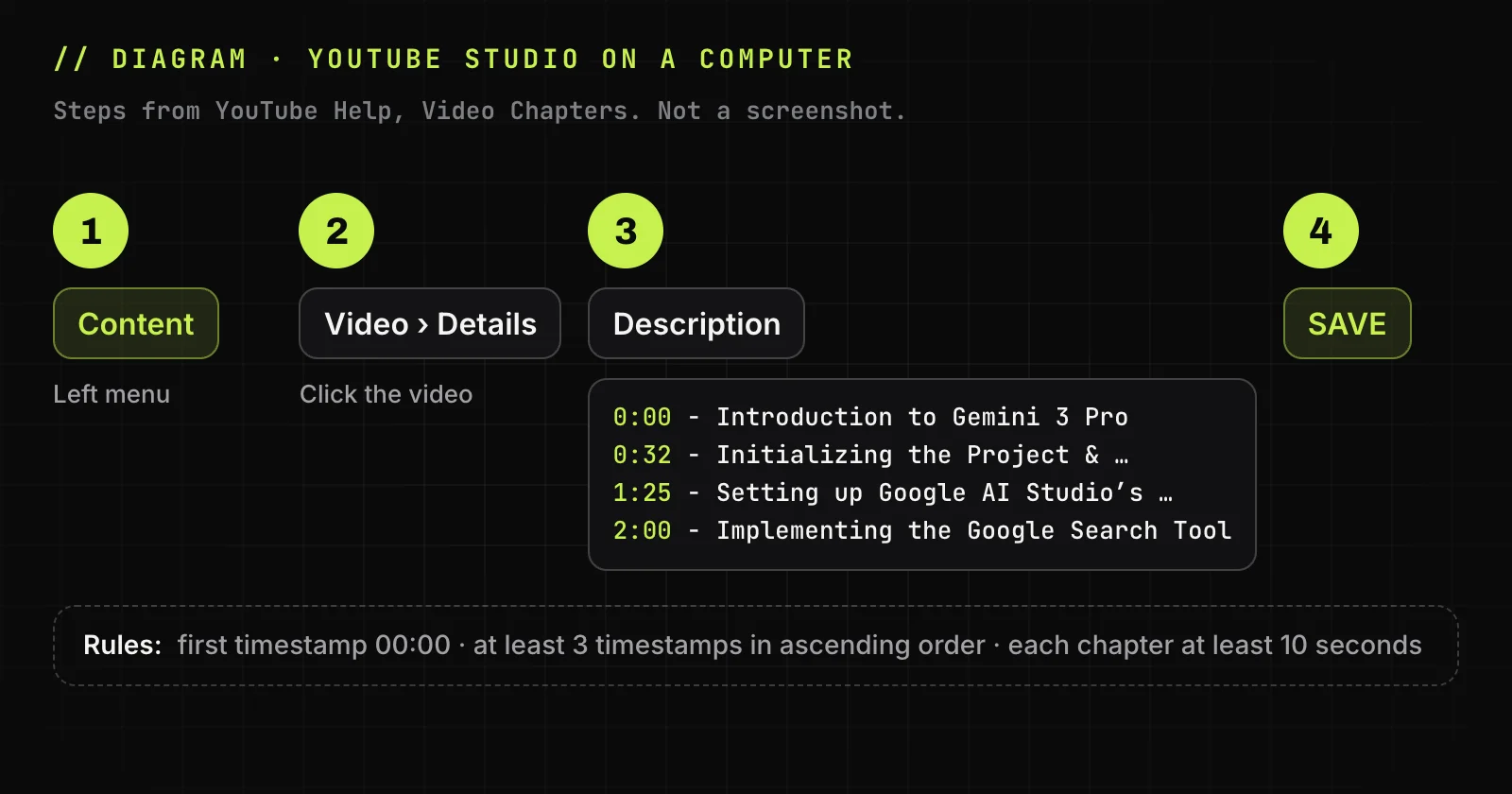
Illustration: adding timestamps in YouTube Studio, from YouTube Help -
Type one timestamp and title per line
In the description box, put each timestamp on its own line: the time first, then a space and the chapter title, for example
0:32 Initializing the project. A space and a hyphen between them also work. The list can sit anywhere in the description, after your intro text or links. -
Check the three chapter rules
These rules are the core of how to add timestamps to a YouTube video. Before saving, check the three rules YouTube Help sets: the first timestamp is
0:00, the list has at least three timestamps in ascending order, and every chapter is 10 seconds or longer, the last one included. -
Save and check the chapters on the progress bar
Click Save, open the watch page and hover over the progress bar: the bar splits into segments, and each one shows its chapter title. If nothing changes, wait a little and refresh the page.
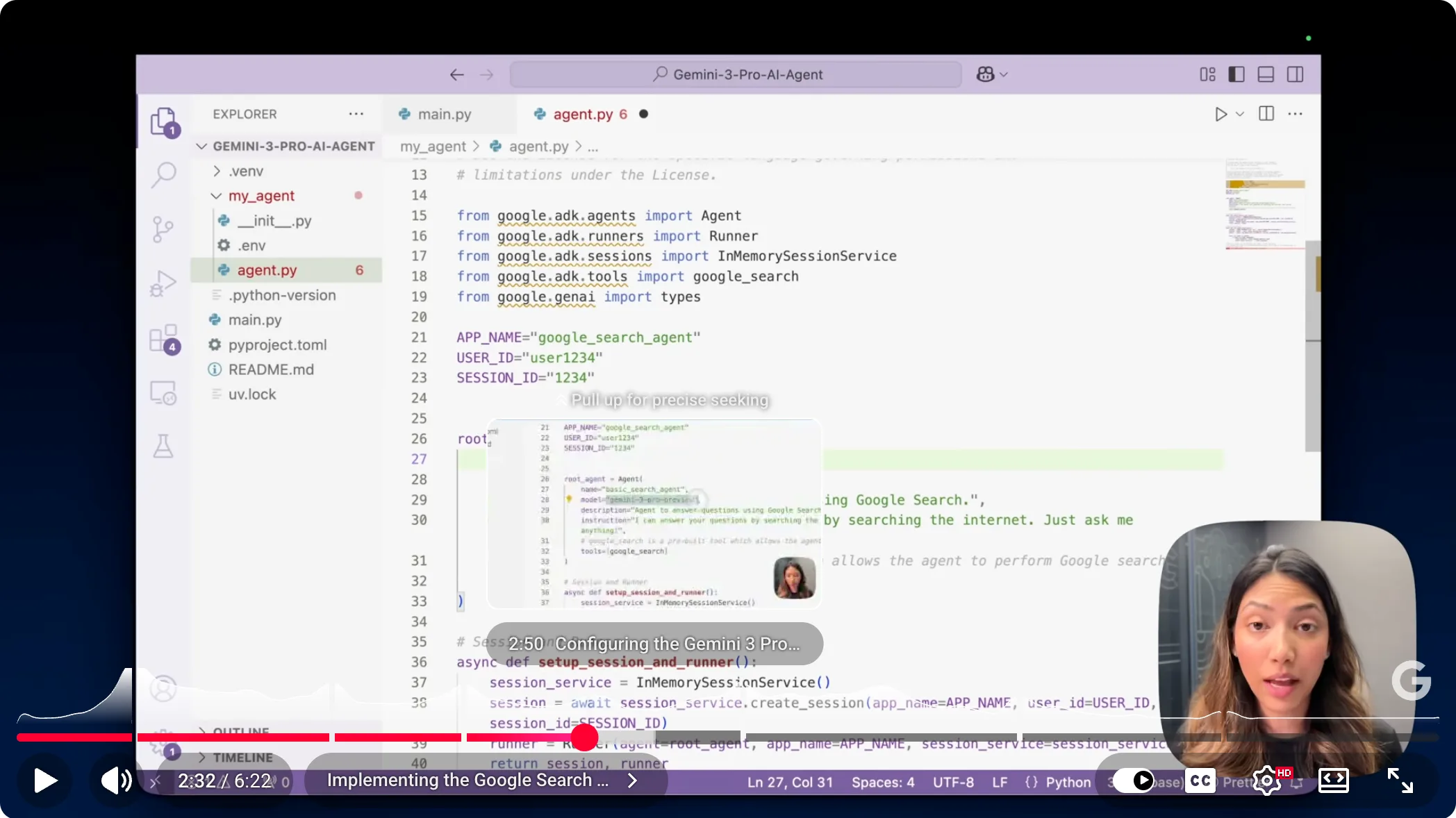
Screenshot: YouTube, Google for Developers (captured November 6, 2026)
The screenshot shows the player at 2:32 with the progress bar split into chapters and the hover preview "2:50 Configuring the Gemini 3 Pro Model", the chapter title shown next to the time.
YouTube timestamp format with a ready example
A YouTube timestamp is a timecode, a position in the video. The format is short: minutes and seconds separated by a colon, then the title. Getting one character wrong is the usual reason chapters do not appear.
Minutes, seconds and hours
Write M:SS or MM:SS for a video under an hour and H:MM:SS after that, such as 1:02:15. Seconds are whole numbers, and 1:32 means one minute and 32 seconds, not 1.32 minutes. Both 0:00 and 00:00 work as the first timestamp: YouTube Help writes 00:00, and the videos in our screenshots start with 0:00.
| Rule | What happens if you break it |
|---|---|
The first timestamp is 0:00 |
No chapters appear on the progress bar |
| At least three timestamps | Two timestamps give no chapters |
| Each chapter lasts 10 seconds or more | The list does not turn into chapters |
| Times go in ascending order | The list does not turn into chapters |
| The time starts the line | A line with text before the time is not read as a chapter |
A chapter list you can copy
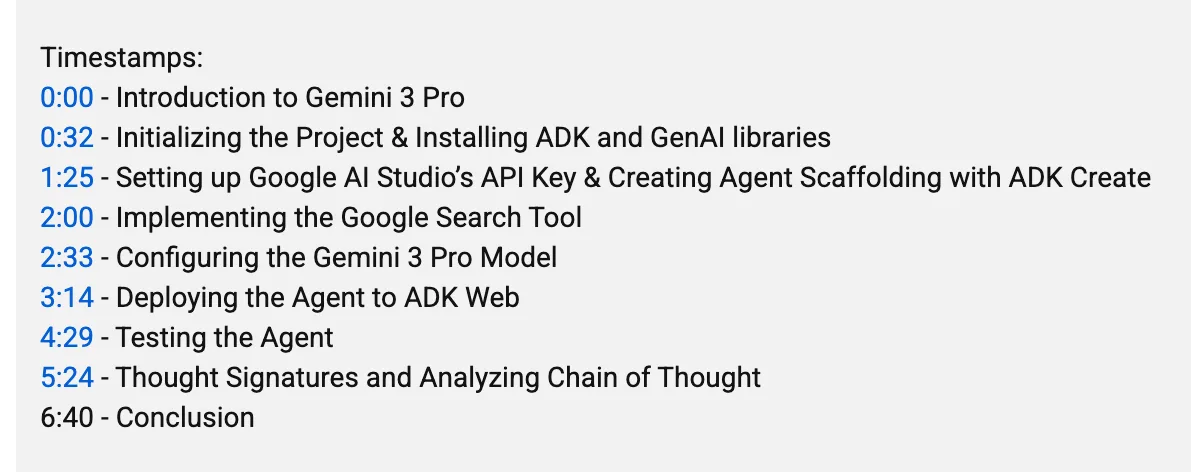
This list comes from the description of "Build an AI Agent with Gemini 3", a 6:22 tutorial by Google for Developers. Its last chapter starts at 5:24 and runs about a minute, well over the 10-second minimum. Replace the times and titles with your own and keep one chapter per line:
0:00 - Introduction to Gemini 3 Pro
0:32 - Initializing the Project & Installing ADK and GenAI libraries
1:25 - Setting up Google AI Studio's API Key & Creating Agent Scaffolding with ADK Create
2:00 - Implementing the Google Search Tool
2:33 - Configuring the Gemini 3 Pro Model
3:14 - Deploying the Agent to ADK Web
4:29 - Testing the Agent
5:24 - Thought Signatures and Analyzing Chain of Thought
The original description has a ninth line, 6:40 - Conclusion. The video ends at 6:22, so YouTube did not turn that line into a link or a chapter: a time past the end of the video is ignored.
Find chapter start times in the video transcript
A transcript with timestamps, the written record of what the speaker says with the time of every line, shows where each topic starts without scrubbing through the video. This is how to make timestamps on YouTube for a long talk or tutorial in a few minutes.
-
Open a transcript with timestamps
On the watch page, open the transcript on YouTube, or paste the link into a YouTube transcript generator such as TranscriptYou and keep Timestamps on.
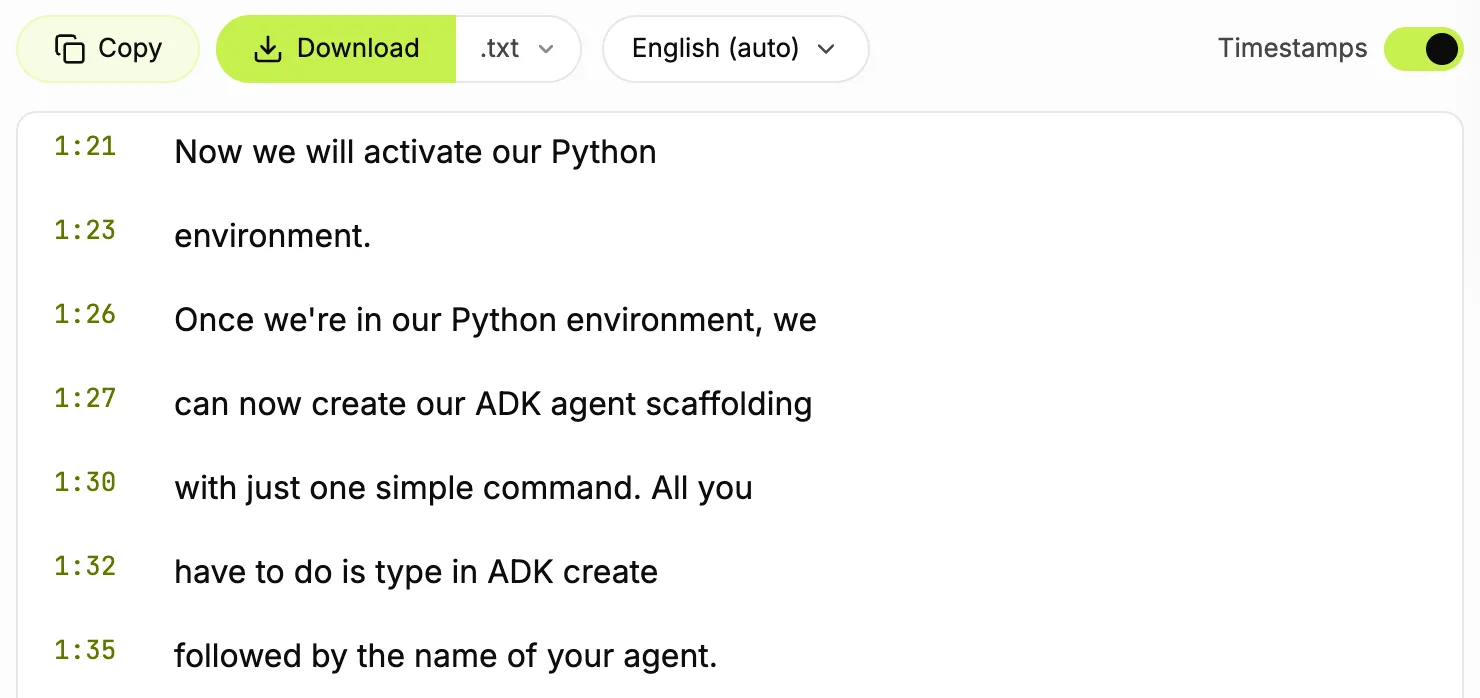
Screenshot: TranscriptYou with Timestamps on, English (auto) track of the Google for Developers video (captured November 6, 2026) -
Mark where each topic starts
Read down the lines and note phrases like "now we will" or "first off", where the speaker moves on.
-
Copy the timestamps into a list
Start the list with
0:00and add the time of each marked line. You can copy the transcript with timestamps and delete the lines you do not need. -
Name each chapter
Use the speaker's own words, cut to a few words per title.
Here is the same Google for Developers video. The left column is its automatic English transcript in TranscriptYou; the right column is the chapter the creator wrote for that moment:
| Transcript line | Creator's chapter |
|---|---|
0:00 Hi everyone, Gemini 3 Pro just launched |
0:00 Introduction to Gemini 3 Pro |
0:27 To start off, let's create an empty project folder |
0:32 Initializing the Project & Installing ADK and GenAI libraries |
1:26 Once we're in our Python environment, we can now create our ADK agent scaffolding |
1:25 Setting up Google AI Studio's API Key & Creating Agent Scaffolding with ADK Create |
2:32 Now, we want to make some changes to this code. First off, we want to use Gemini 3 Pro instead of Gemini 2.0 Flash. |
2:33 Configuring the Gemini 3 Pro Model |
The transcript lines land within a few seconds of the creator's chapters. For a timestamp of every line in a file, export the captions as a timed SRT file.
When this does not work
TranscriptYou reads only the caption track a public YouTube video already has; it does not transcribe audio and does not make chapters for you. Private, members-only and age-restricted videos do not work. If YouTube itself has no transcript, see what to do when the Show transcript button is missing.
Get the timestamped transcript of your video
Paste your video link, keep Timestamps on and copy the lines where each topic starts. Free, no sign-up.
How to add timestamps on YouTube from your phone
The description, and the timestamps in it, can be edited from a phone in two apps. Here is how to do timestamps on YouTube in the YouTube Studio app, following YouTube Help for Android and iPhone:
-
Open Content
In the YouTube Studio app, tap Content in the bottom menu.
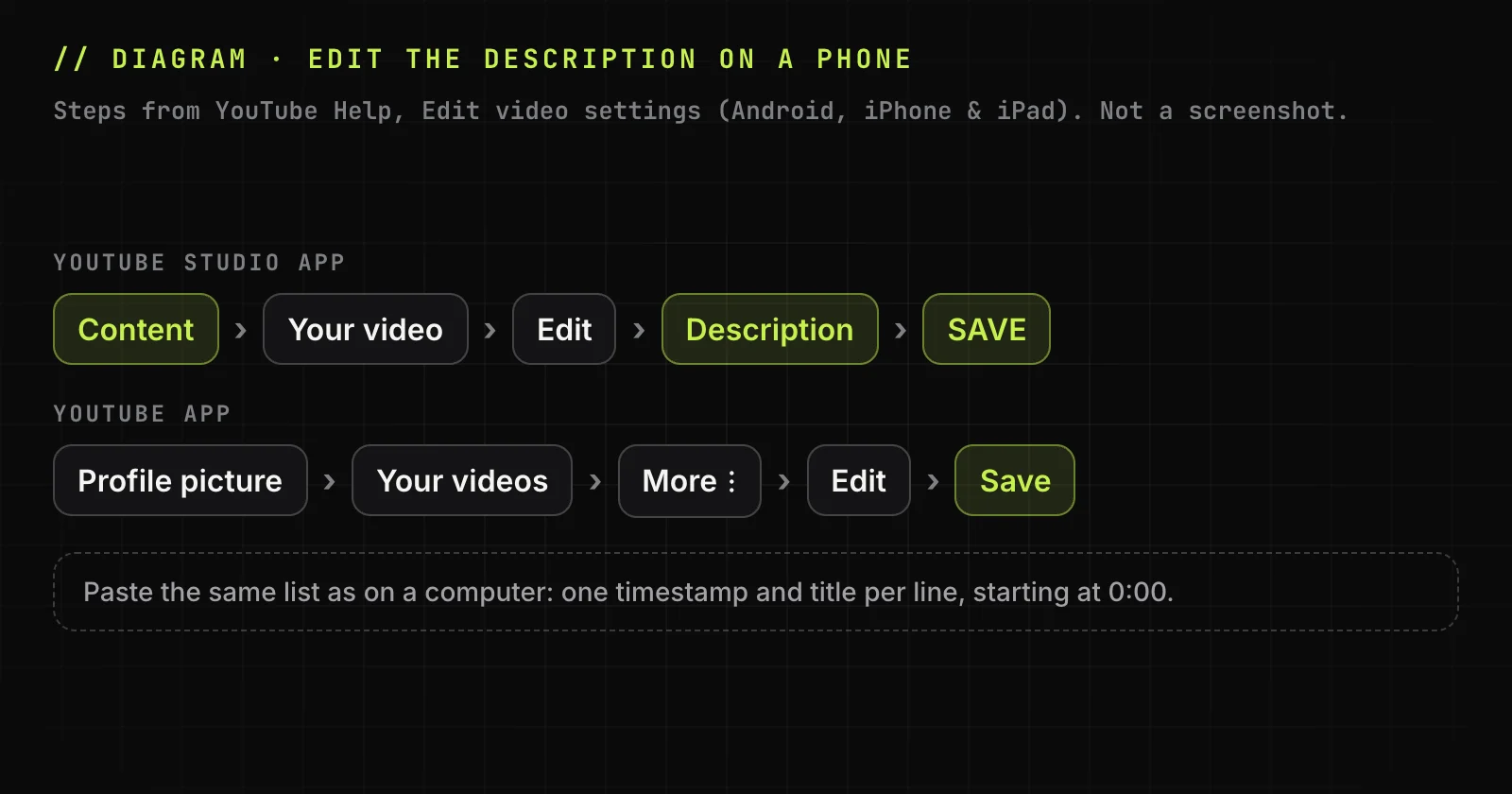
Illustration: editing the description in the YouTube Studio app and the YouTube app, from YouTube Help -
Edit the video
Select the video and tap Edit.
-
Paste the list and save
Paste the timestamps into the description and tap Save.
The regular YouTube app edits the description too: tap your profile picture, open Your videos, tap More next to the video, then Edit and Save. Typing a long list on a phone is slow, so prepare it on a computer from the transcript and paste it from the phone.
Your timestamps replace automatic chapters
YouTube can split some videos into automatic chapters on its own, through the Allow automatic chapters setting in YouTube Studio, which is on by default for new uploads. Not every video is eligible. YouTube timestamps you type in the description override automatic chapters, so your own titles and start times are the ones viewers see. Here is how to turn automatic chapters on or off.
Why YouTube timestamps are not showing as chapters
Chapters fail to show for six reasons, each with its own fix.
The first timestamp is not 0:00
A list that starts at 0:15 gives no chapters on the progress bar. YouTube Help requires the first timestamp to be 00:00; add a 0:00 Intro line at the top.
Fewer than three timestamps or a chapter under 10 seconds
Two timestamps, or three timestamps only five seconds apart, keep the bar in one piece. The fix is simple once you know how to time stamp on YouTube: list three or more timestamps and keep 10 seconds or more between them, and between the last one and the end of the video. A time past the end, like 6:40 in a 6:22 video, is ignored.
Timestamps are out of order or have text before the time
A list such as 0:00, 3:10, 2:05 breaks the ascending order, and a line like Part 2 - 2:05 hides the time behind text. Sort the timestamps from first to last and start every line with the time.
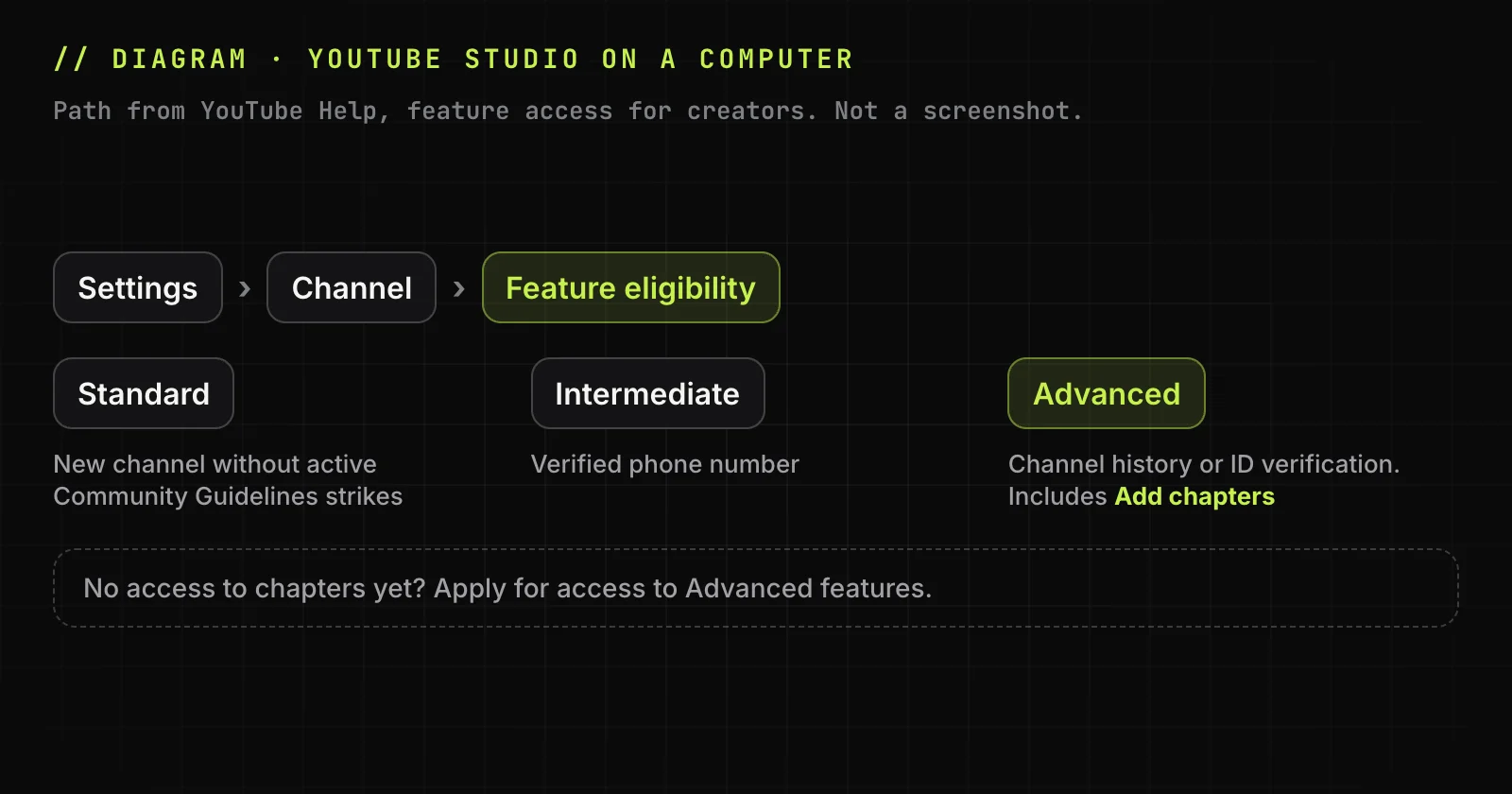
The channel has no access to advanced features
Adding chapters is one of the advanced features of YouTube Studio, so a channel without that access gets no chapters even from a correct list. Check access in YouTube Studio: Settings ‣ Channel ‣ Feature eligibility. Advanced features need enough channel history or a verified ID or video verification.
The video has a strike or limited content
YouTube Help says chapters are not available if the channel has any active strikes or the content may be inappropriate for some viewers. In that case even a correct list gives no chapters.
The timestamps are in a comment, not the description
A list in a comment, even a pinned comment, gives clickable timestamps but no chapters: YouTube reads chapters only from the description. Copy the list into the description and save. Changes can take a little while to show, so wait and refresh before trying again.
Build your chapter list from the transcript
Check where each topic really starts: paste the link and scan the timestamped transcript.
How to add a timestamp in a YouTube comment
Any viewer can point to a moment in a comment, on their own video or on someone else's. This is how to timestamp in YouTube comments:
-
Type the time
Write the time as
M:SS, orH:MM:SSafter an hour, anywhere in the comment text. -
Post the comment
Click Comment or Reply.
-
Check the link
The time turns blue and jumps the video to that moment when clicked.

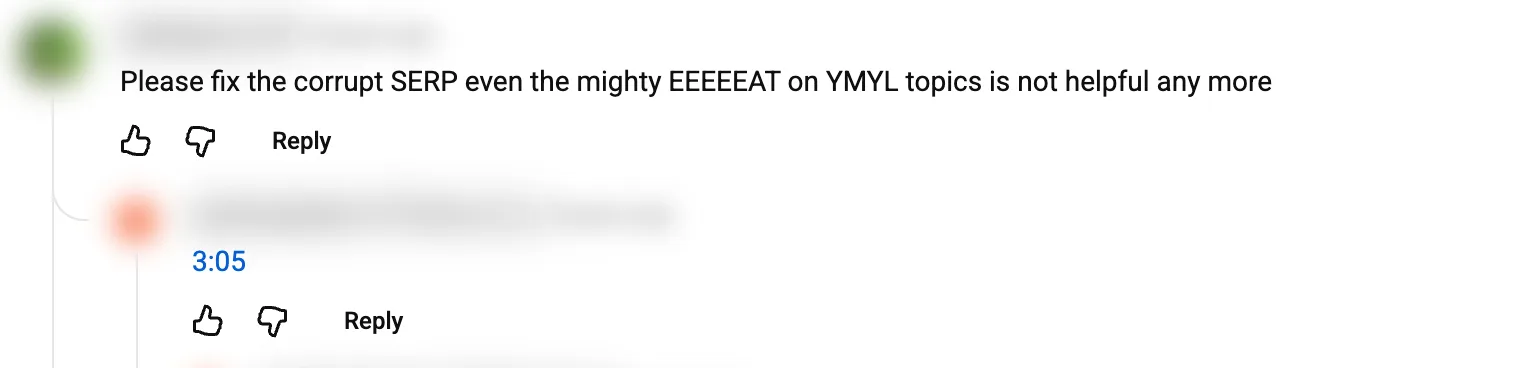
Screenshot: YouTube, a viewer comment on a Kevin Stratvert video (captured November 6, 2026)
Timestamps work in replies too: in the reply below, 3:05 links to second 185 of the video. The owner can pin such a comment, but a pinned comment does not create chapters.
How to share a YouTube link with a timestamp
A YouTube timestamp link opens the video at a chosen second instead of the start. Make one in either of two ways:
- Share ‣ Start at on a computer: pause at the moment, click Share under the video, tick Start at, check the time and click Copy. Start at
1:30gives a link ending in&t=90. - By hand: add
?t=90to a short link (youtu.be/ID?t=90) or&t=90to awatch?v=IDaddress.t=1m30sworks on both addresses, and&t=90son awatch?v=IDaddress.
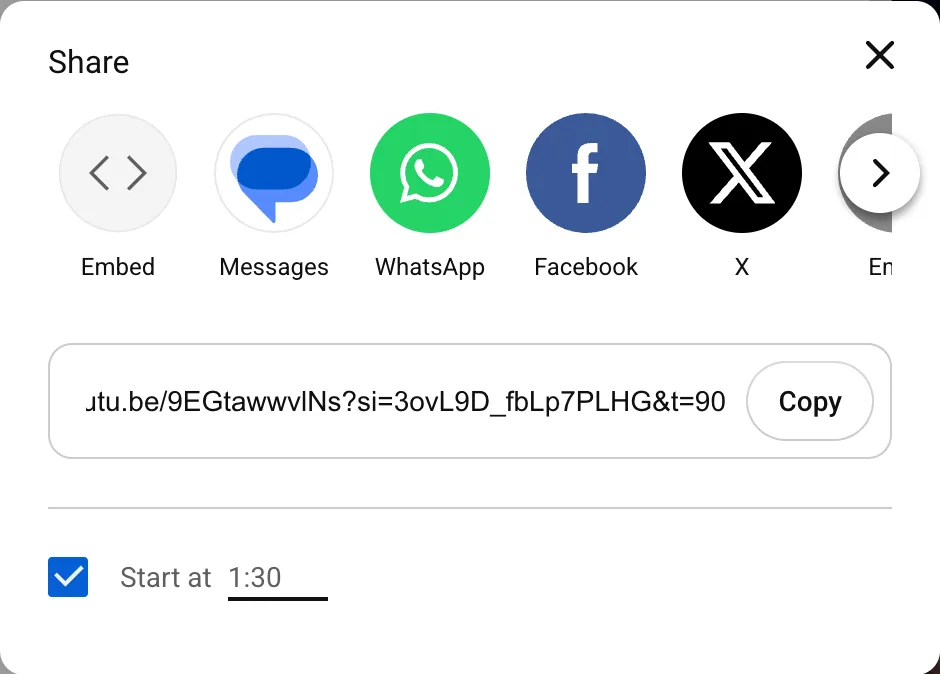
We checked the Share link and each of these forms in Chrome on November 6, 2026: each opened the video at 90 seconds. The link sets only where playback starts; it does not cut the video.
Label each timestamp so viewers know where to jump
A chapter title tells viewers whether the part is worth their time, so make it short and specific: "2:15 Export the SRT file", not "Part 2". Use the words a viewer would search for, without stuffing keywords. For title examples and a check against audience retention, see how to plan and name YouTube chapters.
Viewers use titles to skip, as one Hacker News commenter put it:
I watch them in 1.5x speed and skip chapters that don't interest me if there is timestamp on youtube.
YouTube timestamps FAQ
Can I add timestamps after the video is published?
Yes. You can edit the description of a published video at any time in YouTube Studio or the YouTube app, and the chapters follow the new list once you save.
Can I add timestamps to someone else's YouTube video?
Not as chapters: only the owner, or a manager or editor with channel permissions, can change the description. As a viewer, you can post a comment with a clickable time or share a link that starts at the moment you need.
How do I add markers to a YouTube video?
On YouTube, markers are chapters. Type a list of timestamps and titles in the description in YouTube Studio, starting at 0:00, with three or more entries at least 10 seconds apart.
Do chapters appear in the YouTube transcript?
They can. YouTube Help says chapters may appear in the transcripts. The chapters themselves still come from the list of timestamps in the description.
Do YouTube timestamps help SEO?
YouTube has not confirmed any direct ranking effect. Chapters help viewers find the part they need, and Google Search can show key moments for a video: it detects segments on its own, and it prioritizes timestamps and labels set in the YouTube description.
What are the keyboard shortcuts to jump in a YouTube video?
YouTube has keyboard shortcuts for this. On a computer, J and L jump back and forward 10 seconds, the left and right arrows 5 seconds, and keys 1 to 9 jump to 10% through 90% of the video, with 0 going back to the start. Ctrl with an arrow on Windows, or Option with an arrow on a Mac, moves to the previous or next chapter.
How many chapters can a YouTube video have?
At least three: the list needs three or more timestamps, and each chapter lasts 10 seconds or longer. A 30-second video can therefore have three chapters at most, while a long video has room for many more. YouTube Help sets these minimums for every video with chapters.
Get the transcript of a YouTube video
If the video has captions, paste its link and get the full text with timestamps. Copy it or save it as .txt or .srt. Free, no sign-up.
Sources
- YouTube Help: Video Chapters
- YouTube Help: Edit video settings
- YouTube Help: Learn about feature access for YouTube Creators
- YouTube Help: Share videos and channels
- YouTube Help: Keyboard shortcuts for YouTube
- YouTube Help: Add or remove access to your YouTube channel with channel permissions
- Google Search Central: Video SEO best practices